
Bulk Image Compressor: Compress 100 Images Online Free
Need to compress dozens of photos at once? Learn how bulk image compression works, why it saves time, and how to reduce the size of up to 100 images in one batch.
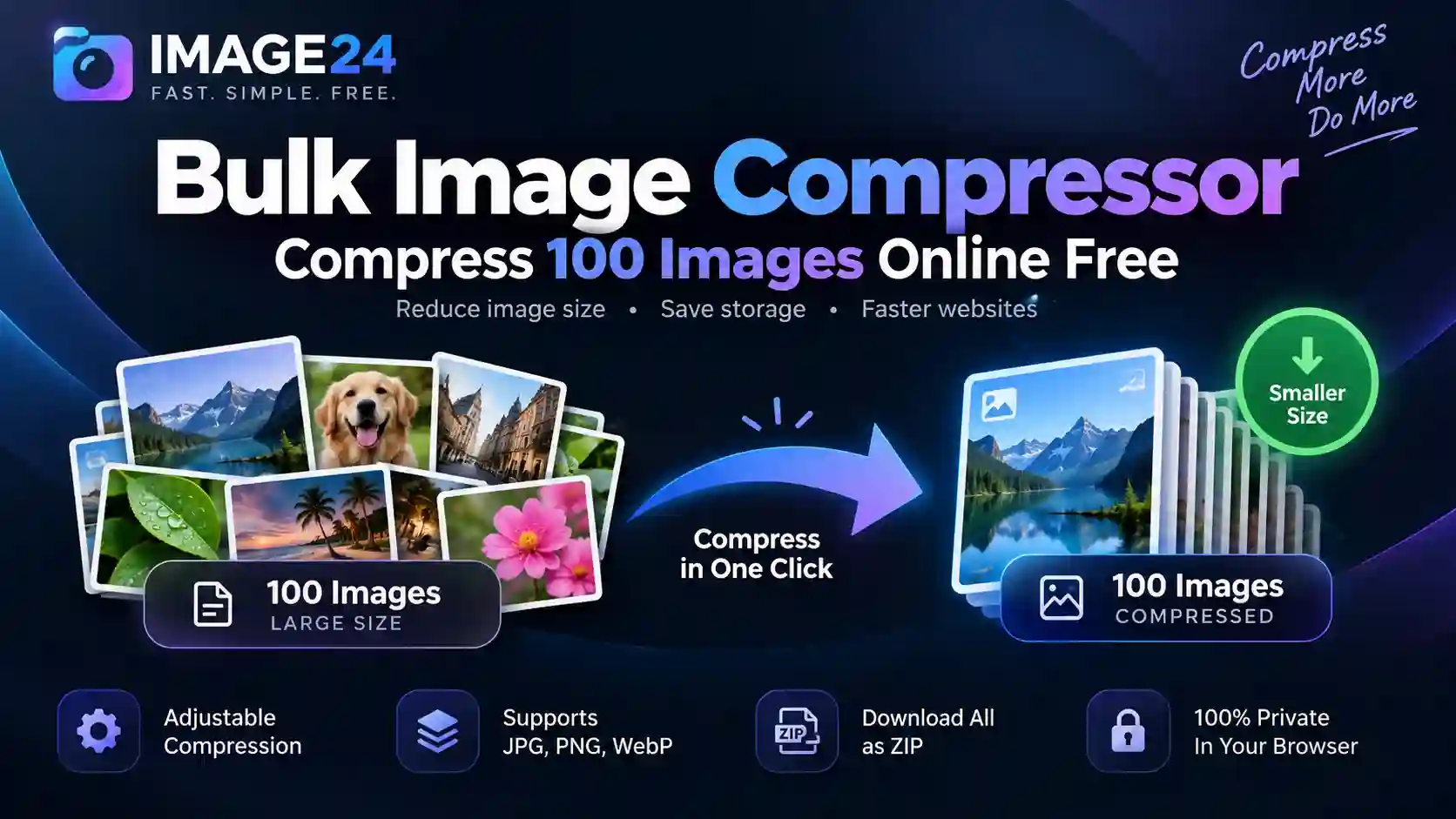
Compressing one image is easy. But what happens when you have 20, 50 or even 100 photos that all need to be smaller?
Compressing every image individually can quickly become repetitive. You have to choose a file, adjust the settings, wait for the result, download it, and then start again.
That's exactly where a bulk image compressor becomes useful.
Quick answer: A bulk image compressor lets you select multiple photos, apply compression to the entire batch, and download the smaller images without processing every file manually.
What Is Bulk Image Compression?
Bulk image compression means processing multiple image files in a single workflow instead of compressing them one at a time.
For example, imagine you have 100 product photos that are several megabytes each. Instead of opening an image compressor 100 separate times, you can select the entire group and compress the batch together.
The goal is simple: make your images smaller while keeping them looking good.
Why Compress Images in Bulk?
Save Time
Process many images in one workflow instead of repeating the same compression process for every individual photo.
Reduce Storage
Smaller image files take up less storage space on your computer, cloud storage and other platforms.
Prepare Images for Websites
Compressing large photos before uploading them can help reduce the amount of image data your website needs to serve.
Keep Results Consistent
Applying the same compression settings to a batch makes it easier to prepare a large collection of images together.
Can You Compress 100 Images at Once?
Yes.
IMAGE24's image compression workflow can be used for individual images, while the new Bulk Image Compressor is designed specifically for larger batches.
The bulk tool lets you select up to 100 images in one batch. After selecting your photos, you can choose your compression level and output format before starting the process.
Instead of: Image 1 → compress → download → Image 2 → repeat you can process the complete batch in one workflow.
How to Compress Multiple Images at Once
Step 1: Select Your Images
Start by selecting the photos you want to compress. You can select multiple files from your computer or drag and drop a group of images into the bulk compressor.
You can select up to 100 images in a single batch.
Step 2: Choose Your Compression Level
Choose how aggressively you want to compress your images. A lower quality setting generally creates smaller files, while a higher quality setting keeps more image detail.
For everyday website photographs, a balanced setting is often a good place to start. You can then adjust the compression depending on how much file-size reduction you need.
Step 3: Choose an Output Format
Depending on your workflow, you can choose a suitable output format such as WebP, JPG or PNG.
WebP is a useful choice for many website images because it can provide efficient compression while maintaining good visual quality.
Step 4: Compress the Batch
Click the compression button and let the tool process the selected images.
Instead of manually repeating the same task for every image, the batch compressor works through the selected files and reports the results.
Step 5: Download Your Images
Once the batch is finished, you can download your compressed images. The bulk workflow also makes it easier to collect the complete batch together rather than saving each file individually.
How Much Can Bulk Image Compression Reduce File Size?
There is no single percentage that applies to every image.
The amount of space you can save depends on factors such as the original format, image dimensions, image content and compression settings.
A large photograph with lots of detail may behave differently from a simple graphic or screenshot.
| Image Type | Good Starting Format | Main Goal |
|---|---|---|
| Photos | WebP / JPG | Smaller files with good visual quality |
| Website Images | WebP | Efficient web delivery |
| Screenshots | PNG / WebP | Preserve readable details |
| Transparent Graphics | PNG / WebP | Keep transparency |
Why Use WebP for Bulk Image Compression?
WebP is particularly useful when you're preparing images for the web.
It supports lossy and lossless compression and can also support transparency, making it a flexible format for many types of website images.
If you have a large folder of photographs that are currently stored as JPG files, converting them to WebP during your compression workflow can be worth considering.
You can also read our guide: JPG, PNG, WebP and AVIF Explained to understand the differences between the most common image formats.
Why Compress Images Before Uploading Them to a Website?
Uploading a collection of very large images can increase the amount of storage your website uses and can also increase the amount of image data that needs to be delivered to visitors.
This is especially relevant for websites containing:
- Product photos
- Blog images
- Portfolio galleries
- Travel photographs
- Social media assets
- Large image collections
Compressing images before uploading them gives you more control over the files you're adding to your website.
Who Can Benefit From Bulk Image Compression?
Bloggers
If you're preparing several images for a new article, compressing them together can save time before you upload them to WordPress.
Ecommerce Stores
Online stores can have hundreds of product photographs. Bulk compression can make it easier to prepare those images before adding them to product pages.
Photographers
Large photo collections can quickly become difficult to share or store. Creating smaller versions can make everyday sharing and web publishing easier.
Designers
Designers often work with collections of screenshots, graphics and exported images. Batch processing can reduce repetitive work.
Website Owners
If you're preparing images for a website, compressing the batch before uploading can help keep your media library more organized and efficient.
Are Bulk Image Compressors Safe to Use?
It depends on how the particular tool processes your files.
Some online image tools upload files to a remote server for processing. Other tools can perform image processing directly inside the browser.
IMAGE24's bulk compressor is designed to process your selected images locally in your browser.
Your workflow stays in the browser: select your images, compress them, and download the results without needing a traditional image-processing upload workflow.
Does Compressing 100 Images Reduce Quality?
Compression can affect image quality, particularly when using aggressive lossy compression.
The important thing is to find the right balance between file size and visual quality.
If you need very small files for a website, you may accept slightly more compression. If the images need to retain more detail, use a higher quality setting.
The best setting depends on how the images will actually be used.
Best Practices for Compressing Images in Bulk
- Keep your originals. Always keep a copy of important original images before applying lossy compression.
- Use a consistent setting. Similar images are easier to process when they use similar compression settings.
- Choose the right format. Photos often work well with JPG or WebP, while graphics may benefit from PNG or WebP.
- Don't over-compress. Extremely aggressive compression can introduce visible artifacts.
- Check the final images. File size is important, but the image should still look good at its intended display size.
Bulk Image Compressor vs Single Image Compressor
A regular image compressor is perfect when you only need to optimize one or two images.
But when you have a large group of files, the workflow becomes different.
| Task | Single Compressor | Bulk Compressor |
|---|---|---|
| One image | Excellent | Excellent |
| 10 images | Repetitive | Fast |
| 50 images | Time consuming | Much easier |
| 100 images | Very repetitive | Designed for batch processing |
Compress 100 Images Online With IMAGE24
If you need to compress a large group of images, you don't need to process every file separately.
The IMAGE24 Bulk Image Compressor lets you select up to 100 images, choose your compression settings, process the batch and download the results.
The tool is designed for common image workflows such as website optimization, blog publishing, ecommerce images, photo collections and everyday file-size reduction.
You can start directly here: Bulk Image Compressor
Final Thoughts
Compressing one image at a time works when you only have a few files. But when you're dealing with dozens or hundreds of photos, bulk compression is much more practical.
A good bulk image compressor lets you select your images once, choose your compression settings and process the complete batch together.
Whether you're preparing product photos, blog images, screenshots or a large photo collection, reducing unnecessary file size can make your image workflow much easier.
Have 100 images to compress? Select them together, choose your settings and let IMAGE24 handle the batch instead of repeating the same task 100 times.
Ready to compress your images?
Compress up to 100 images in one batch with IMAGE24. Adjust compression, reduce file sizes and download your optimized images.
Frequently Asked Questions
Yes. IMAGE24's Bulk Image Compressor is designed to process up to 100 images in a single batch.
Yes. The IMAGE24 bulk compressor is available online without requiring a traditional image-editing application.
Yes. You can select multiple JPG or JPEG images and process them together using the bulk image compressor.
Yes. Multiple PNG files can be selected for batch processing. Keep in mind that PNG compression behaves differently from lossy JPG or WebP compression.
Yes. WebP can be selected as an output format in the IMAGE24 Bulk Image Compressor.
The IMAGE24 bulk compression workflow is designed to process images locally in your browser rather than using a traditional server-side upload workflow.
Lossy compression can reduce some image detail. The amount depends on the compression settings and the image. A balanced setting can provide a useful compromise between file size and visual quality.
Compressing images before uploading can reduce their file sizes, which can make your media library more efficient and reduce the amount of image data your website needs to deliver.
Simple image tools for everyday image work.